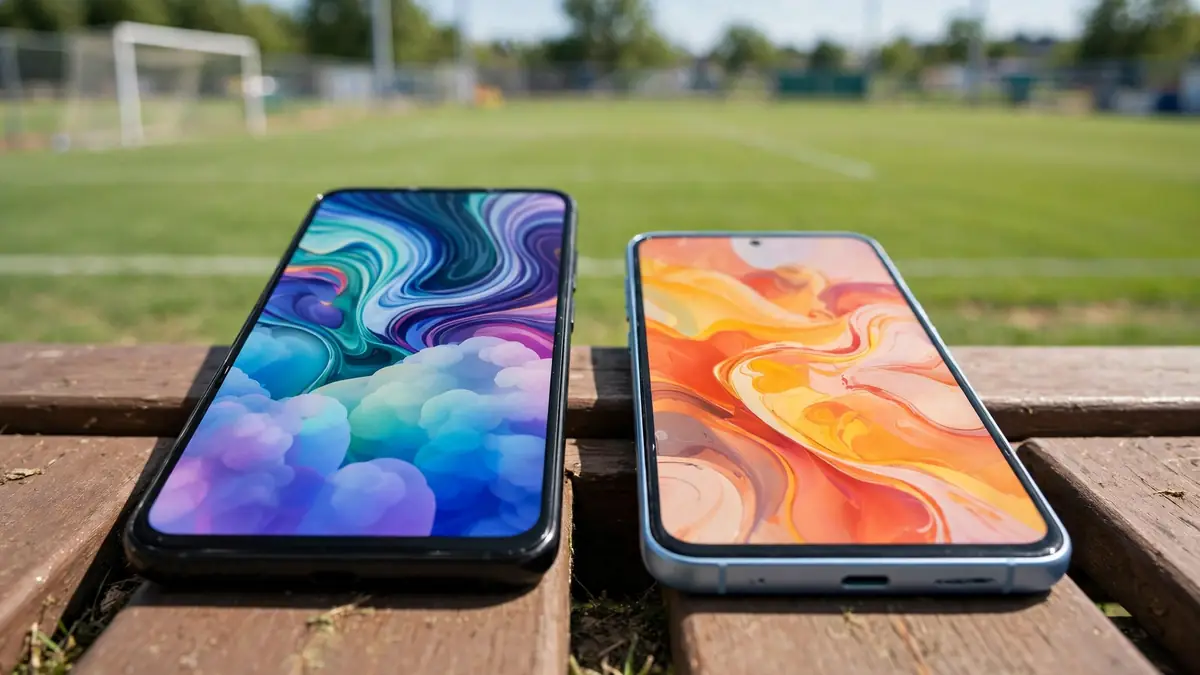
Whether TeamLinkt will run well on your phone is one of the first questions families ask when a coach moves schedules, messages, and availability checks into an app. The good news is that TeamLinkt - Sports Team App by QuickLinkt Solutions Inc. is built for everyday phones on both major platforms, and it is free to download from the official stores. This guide explains what is actually confirmed about compatibility, how to check your own device before you rely on it for game day, and what practical steps to take if an install or update does not go as expected. It does not guess at requirements that have not been verified, because guessing is exactly what leaves a parent stuck at the field with an app that will not open.
TeamLinkt at a Glance on Android and iPhone
TeamLinkt is available for Android through Google Play under the package name com.teamlinkt.sportTeamApp, and for iPhone through the App Store, where its listing ID is 1271528394. In both stores the publisher is QuickLinkt Solutions Inc., and that publisher name is worth checking every time you download. Similar names and unofficial copies can appear in search results for popular team apps, so confirming the full app name, TeamLinkt - Sports Team App, and the publisher before you tap install protects you from installing the wrong thing.
The app is free on both platforms. It contains ads, and there is an optional upgrade called TeamLinkt Plus that removes ads. No prices are covered here because Plus pricing can vary and should be checked in the official store listing or inside the app itself. Compatibility has nothing to do with whether you pay for Plus.
If you want a single place to start from, our download page points you toward the official options. From there you can follow the platform-specific walkthrough that matches your phone rather than trying to follow instructions written for the other system.
iPhone Compatibility: What Is Confirmed
For iPhone, the current App Store listing states that TeamLinkt requires iOS 16.0 or later. That is the confirmed figure at the time of writing, but you should always check the current listing before you rely on it, because store requirements can change when an app is updated. The listing page itself is the authority, not a blog post, a screenshot shared in a team chat, or an old device in your household that installed the app some time ago.
How to check your iPhone version
Checking takes less than a minute and avoids a failed download later. Work through these steps in your phone's settings:
- Open your iPhone's Settings app and go to the general or about section where the software version is shown.
- Note the iOS version number and compare it with the requirement shown on the current App Store listing for TeamLinkt.
- If your version is below what the listing requires, look for an available iOS update in the same settings area and install it if your device supports it.
- Restart the phone after a system update, then try the App Store download again on a stable Wi-Fi connection.
If your iPhone cannot update to the iOS version the listing requires, the app may not install, or an existing install may stop receiving updates. In that situation, do not look for workarounds on third-party download sites. A safer practical alternative is web access, covered later in this guide, or using a newer household device for team information until you replace the phone. For the step-by-step install itself, see our dedicated guide to download TeamLinkt on iPhone, which follows the official App Store route only.
Storage and account points for iPhone
Compatibility is not only about the iOS version. A nearly full phone can block installs and updates even when the system version is fine, so check your available storage if a download stalls. It also helps to confirm you are signed in with the Apple account you intend to use, especially on a shared family device. Installing under the wrong account makes later updates more confusing than they need to be.
Android Compatibility: What to Know Without Guessing
For Android, TeamLinkt is listed on Google Play as TeamLinkt - Sports Team App by QuickLinkt Solutions Inc. Unlike the iPhone figure above, a specific minimum Android version for TeamLinkt has not been verified for this guide, so this article will not state one. Inventing a version number would be unhelpful and could be wrong for your device. Instead, use Google Play itself as the compatibility check, because the store checks your specific device model and system version when you open the listing.
Using Google Play as your compatibility check
On your Android phone, open Google Play, search for the full app name, and open the listing published by QuickLinkt Solutions Inc. If the store offers an Install button for your device, that is the clearest sign the listing considers your phone compatible at that moment. If the store instead shows a message that your device is not compatible, that message is coming from the store based on your handset, and no guide site can override it. You can still try the basic checks below, such as updating your system software if an update is available for your model and freeing up storage, then checking the listing again.
Android phones vary far more than iPhones, and different manufacturers and older handsets can behave differently with the same listing. That variety is another reason a single stated version number would mislead more people than it helped. For the official install route in full, follow our guide to download TeamLinkt on Android and avoid any site offering a direct file download outside Google Play.
Why you should never sideload the app
When a phone reports an incompatibility, some websites suggest downloading an installation file from elsewhere and installing it manually. Do not do this for TeamLinkt. Files from third-party sites can be outdated, modified, or unsafe, and they do not update through the store. If your current Android phone genuinely cannot run the app, use the web option described below or a different device in the household.
Checking Any Phone Before the Season Starts
The best time to sort out compatibility is when you first join the team, not on the morning of the first game. A short check now gives you time to update software, free up space, or talk to your coach about an alternative way to receive key information if your phone turns out to be a problem.
- Confirm you are looking at the correct listing: TeamLinkt - Sports Team App by QuickLinkt Solutions Inc. on Google Play or the App Store.
- On iPhone, compare your iOS version with the requirement on the current listing. On Android, let Google Play tell you whether your device is offered an install.
- Check you have reasonable free storage and a stable connection, then install the app while you are at home on Wi-Fi.
- Open the app, sign in with the email address your coach or team admin has on file for you, and confirm you can see the correct team.
- Open a schedule or event inside the app to make sure content actually loads, rather than assuming a successful install means everything works.
- Allow notifications in your phone's app settings if you want schedule changes and messages to reach you promptly.
That last sign-in check matters more than people expect. Many apparent compatibility problems are actually account problems, where a parent signs in with a different email from the one the team used for the invitation. If your team is missing after install, check the email question first before reinstalling anything.
Tablets, Spare Phones, and Shared Family Devices
Youth sports families often juggle devices, so treat each tablet, spare phone, or shared device as its own compatibility check. A spare handset that has not been updated in a year may fall behind store requirements even if it once ran the app well. Install from the official store on that device, sign in carefully, and test it there rather than assuming success on your main phone guarantees success everywhere else. On shared devices, confirm whose account is signed in before replying to availability or messages, and sign out and back in with the correct account in the app's settings if the wrong profile is showing.
When a Compatible Phone Still Has Problems
A phone can be fully compatible and still give you trouble on a given day. Updates fail, notifications go quiet, or the app closes unexpectedly. These are usually everyday phone issues rather than a sign that your device is unsupported, and the standard checks are safe to work through in order.
A calm troubleshooting order
- Check your connection. Try Wi-Fi and mobile data if you can, and move away from a weak signal area before judging the app.
- Close the app completely and reopen it. If problems continue, restart the phone itself.
- Check for an app update in Google Play or the App Store and install it if one is offered.
- Check notification permissions in your phone's app settings for TeamLinkt, and check that Do Not Disturb or a focus mode is not silencing alerts.
- On Android, check whether battery optimisation is restricting TeamLinkt in your phone's app settings, and allow it to run normally if the system is putting it to sleep aggressively.
- Confirm again that you are signed in with the right account and email for your team.
- Ask your coach or team admin whether the team, event, or schedule has changed, been moved, or been recreated, because an admin change can look like missing content in the app.
- Only as a last step, uninstall and reinstall the app from the official store, then sign in again with the same email.
Our separate TeamLinkt app update guide goes deeper on keeping the app current, which is worth reading if your problems started right after, or right before, an update. Keeping the app and your phone's system software reasonably current is the single habit that prevents most compatibility surprises across a season.
Using TeamLinkt on the Web When a Phone Is a Problem
If a particular phone cannot install the app, remember that TeamLinkt also offers web access at app.teamlinkt.com. Opening that address in a browser can be a practical way to read a schedule, check a location, or confirm a time while you sort out the device issue, although notifications still depend on the app and your phone settings.
Web access is also useful for diagnosis. If you can sign in on the web with the same email and see your team correctly there, your account is fine and the problem sits with the phone or the app install. If the team is missing on the web as well, the issue is more likely the account, the invitation email, or a team change made by an admin.
Conclusion
Compatibility for TeamLinkt comes down to a few verifiable points. The app is TeamLinkt - Sports Team App by QuickLinkt Solutions Inc., free on Google Play and the App Store, with ads and an optional TeamLinkt Plus upgrade that removes them. On iPhone, check the current App Store listing, which requires iOS 16.0 or later at the time of writing, and always confirm that figure on the listing itself. On Android, no minimum version is stated in this guide because it has not been verified, so let Google Play judge your specific device. Install only from the official stores, check your device before the season starts, and work through the standard connection, restart, permission, and update checks if a compatible phone misbehaves. If you are still stuck after those steps, contact official support at help@teamlinkt.com or through teamlinkt.com. This guide site is independent and cannot access your account, your team, or your device, so official support is the right final step for anything account-specific.